



Kindergarten Tech Curriculum Subscription
$36.00 / year
A full school year of kindergarten computer lab lessons, about 39 class sessions built for one class a week. Students learn to use a mouse or trackpad, find letters and arrow keys on the keyboard, type sight words, practice math on the computer and stay safe online. Every lesson is built for the ISTE 2024 Standards for Students and works on Chromebooks, PCs and Macs. Ideal for a technology teacher, a kindergarten teacher with lab time, or a homeschool family.
Last updated November 2026.
No Stress Ordering:
- Download the teacher files as soon as the order is placed.
- You’ll also receive an email with the download link(s) so that you can access them anywhere.
- The subscriptions come with both digital downloads and virtual content hosted on my webpages. All of the access information will be provided to you.
Description
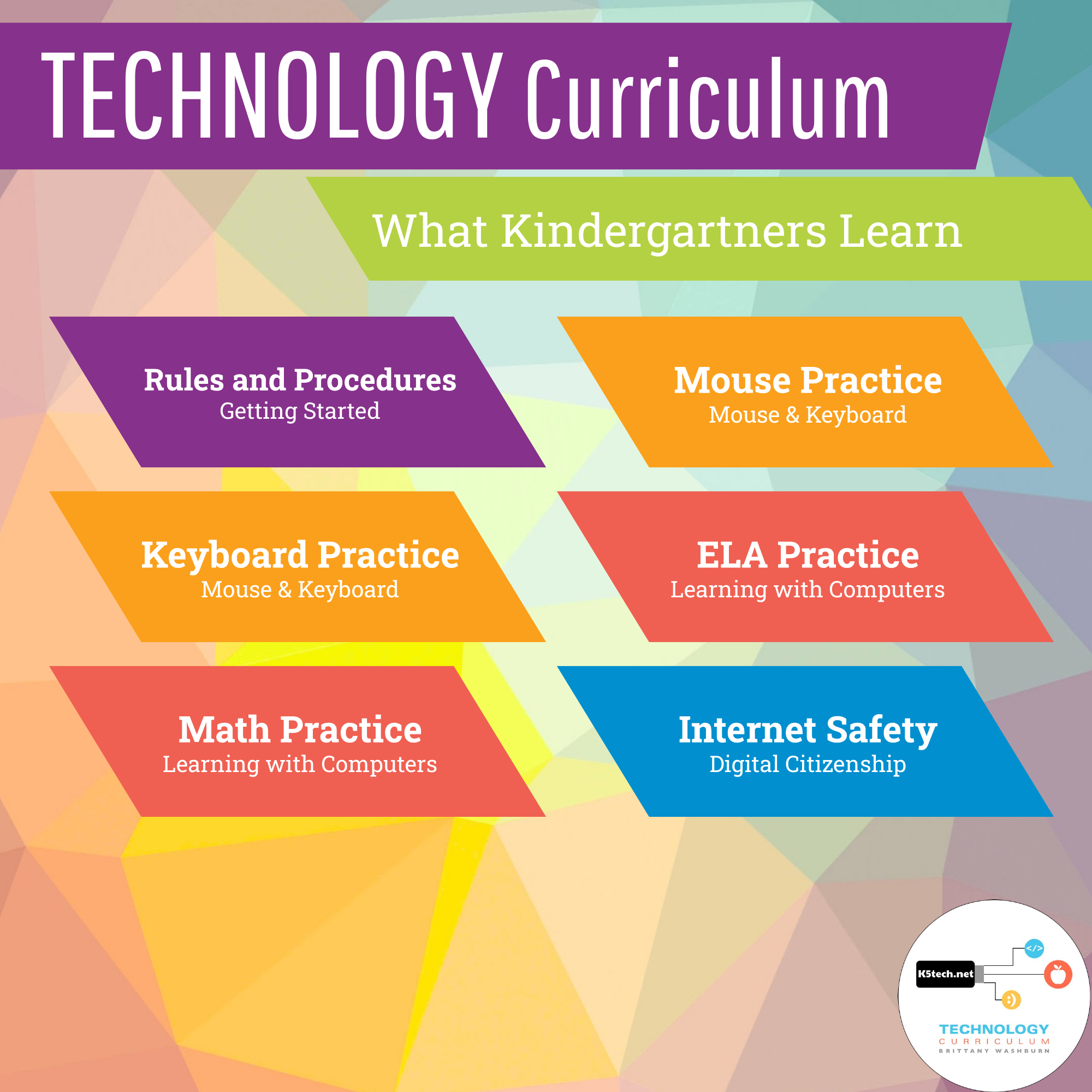
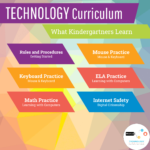
What kindergarteners learn in this technology curriculum
Kindergarten students need to become familiar with the computer while practicing what they’re learning in class. That means lots of mouse practice that builds letters and number sense, plus a first look at the keyboard and staying safe online.
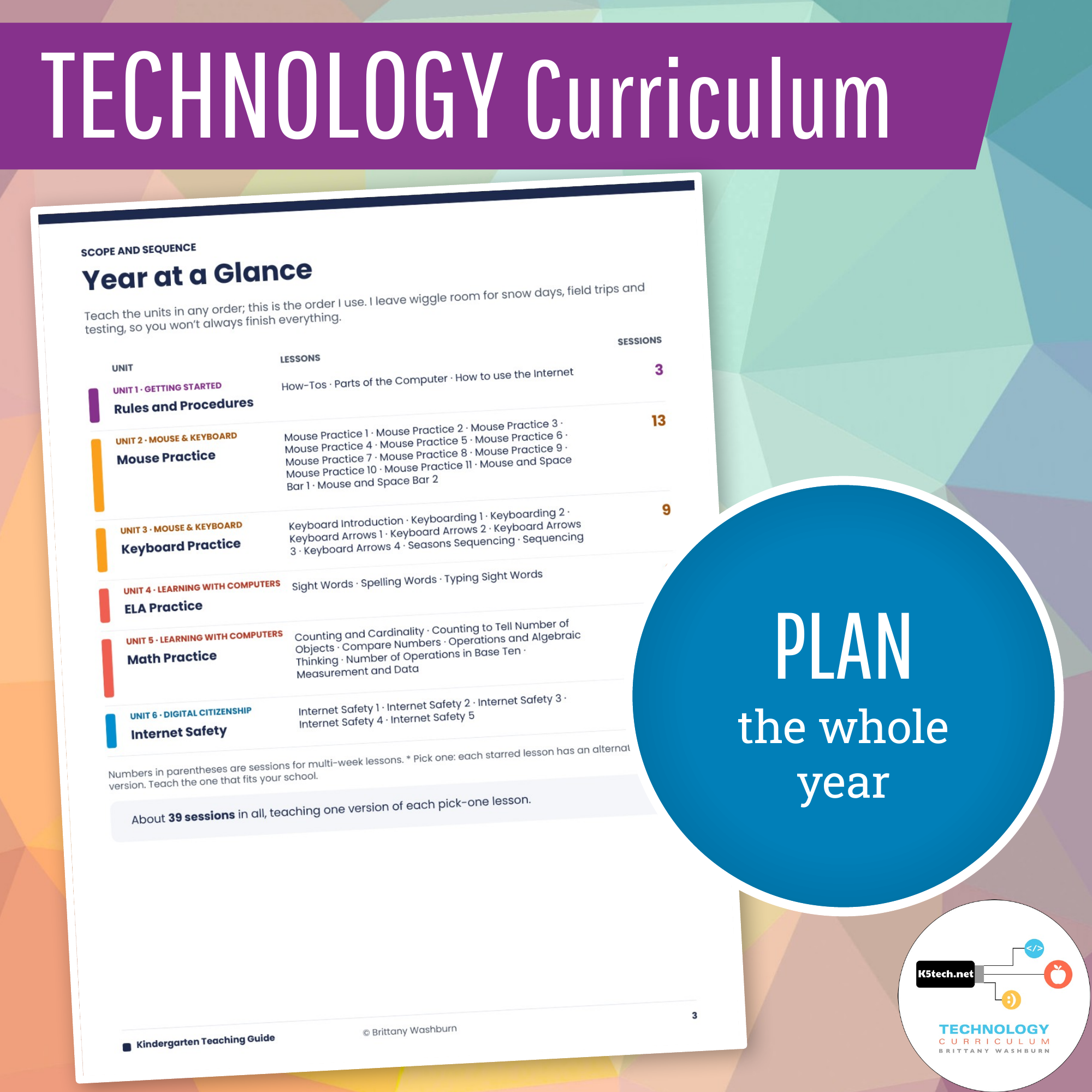
Unit 1 · Getting Started: Rules and Procedures (3 sessions)
- Log in with a username and password, and keep the computer station tidy
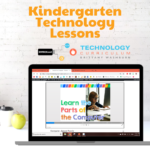
- Name the parts of a computer and turn it on and off the right way
- Name the buttons in a web browser and find icons like the trash can and folder
Lessons: How To’s · Parts of the Computer · How to use the Internet
ISTE 2024: 1.1.d
Unit 2 · Mouse Practice (13 sessions)
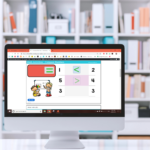
- Hold the mouse the right way, click, and drag and drop
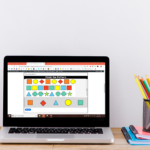
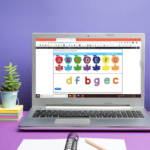
- Drag letters, numbers, colors and shapes into order or to their matches, including uppercase and lowercase letters and ABC order
- Tell what the pointer is showing by its shape
- Press the space bar to make things happen in a game
Lessons: Mouse Practice 1–11 · Mouse and Space Bar 1–2
ISTE 2024: 1.1.d
Unit 3 · Keyboard Practice (9 sessions)
- Find and type letters and numbers on the keyboard
- Use the arrow keys to move through mazes and move a robot
- Drag pictures into first, next and last order, and put colors and numbers in order
Lessons: Keyboard Introduction · Keyboarding 1–2 · Keyboard Arrows 1–4 · Seasons Sequencing · Color and Number Sequencing
ISTE 2024: 1.1.d
Unit 4 · ELA Practice (3 sessions)
- Type sight words and spelling words
- Match color and shape words to pictures
Lessons: Sight Words · Spelling Words · Typing Sight Words
ISTE 2024: 1.1.d
Unit 5 · Math Practice (6 sessions)
- Count to 100 on a hundreds chart and count objects in ten frames
- Compare numbers and groups, and find how many more make 5 and 10
- Build teen numbers with base ten blocks, compare length, height and weight, and sort and count groups
Lessons: Math Practice 1–6
ISTE 2024: 1.1.d
Unit 6 · Internet Safety (5 sessions)
- Close a pop-up or ask a grown-up for help
- Name safe websites and keep passwords secret
- Tell mail from email, choose a safe username, and tell private from personal information
Lessons: Internet Safety 1–5
ISTE 2024: 1.2.a, 1.2.d
Kept current, one unit at a time
Technology changes fast, so every year I pick one part of the curriculum and rebuild it. So far I’ve updated the software skills lessons, coding, research skills, computer basics and digital citizenship. This year every grade also got a new editable Teaching Guide and Homeschool Setup and Adjustments pages. When you subscribe, updates are added automatically throughout your subscription year.
Last updated November 2026.
Standards at a glance
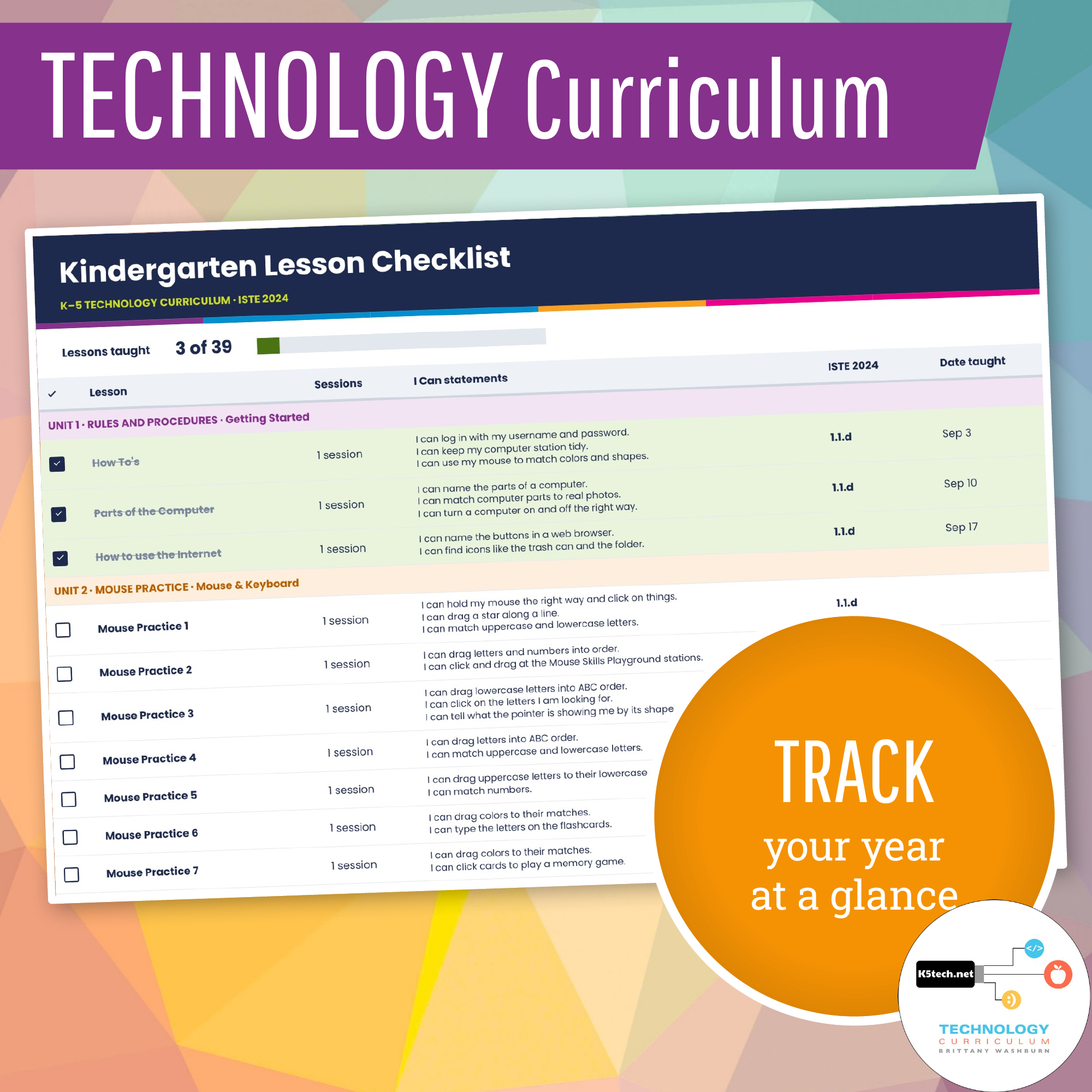
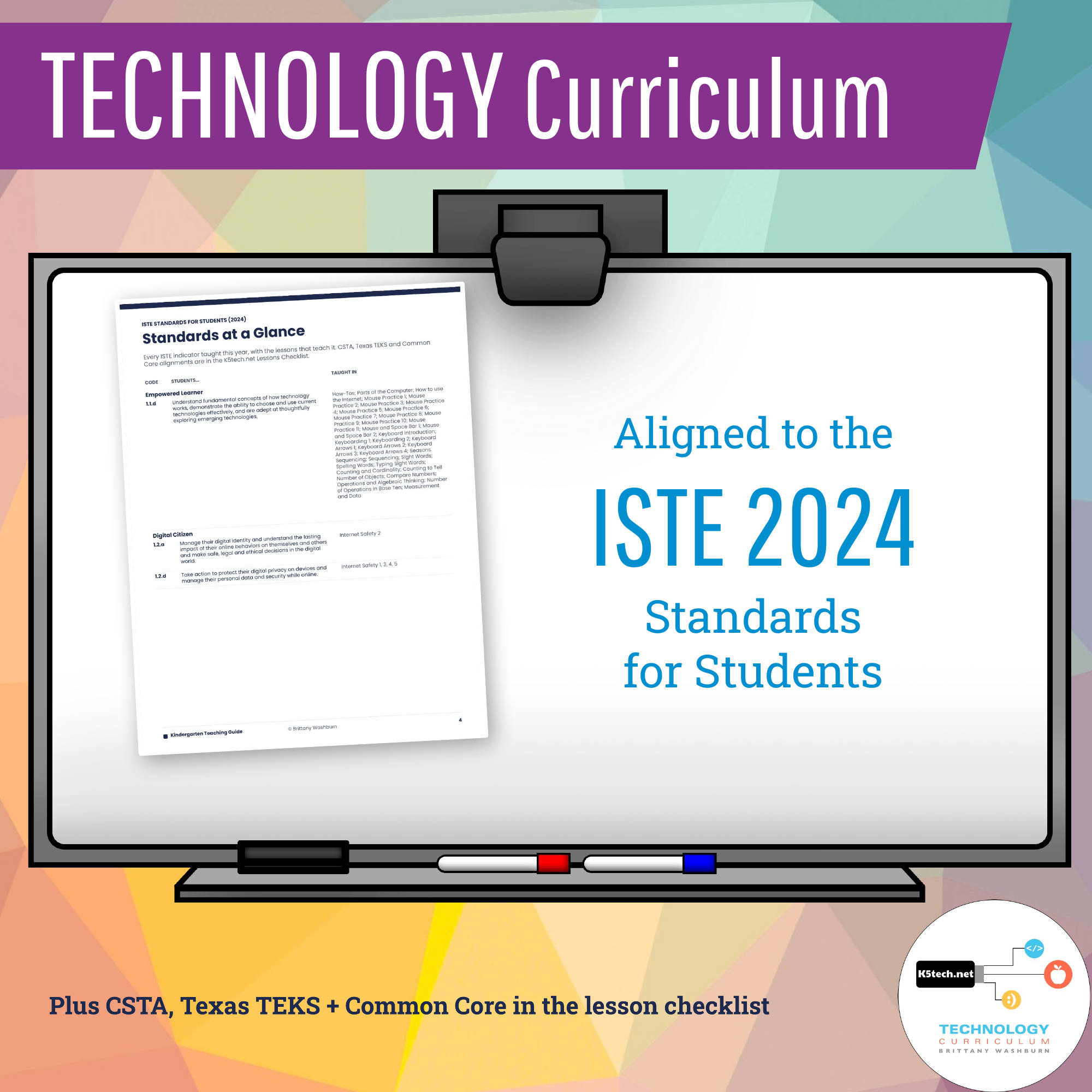
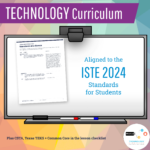
Kindergarten focuses on two ISTE 2024 Standards for Students: Empowered Learner (using technology with confidence) and Digital Citizen (staying safe online). Every lesson lists its ISTE code and I Can statements. The lesson checklist also maps lessons to Common Core reading and math, Texas TEKS and CSTA where they fit.
Why kindergarten is a big tech year
After years teaching in the computer lab, I learned not to be terrified of my kindergarten classes. Twenty-five-ish students on computers with only me as the adult in the room had me sweating every time, until I realized what 5- and 6-year-olds need most. They need to get comfortable with the computer while practicing what they’re learning in class. So the year is built on lots of mouse practice with letters and numbers, a first look at the keyboard, and simple ways to stay safe online.
Save money by purchasing this in a Bundle for grades K-5
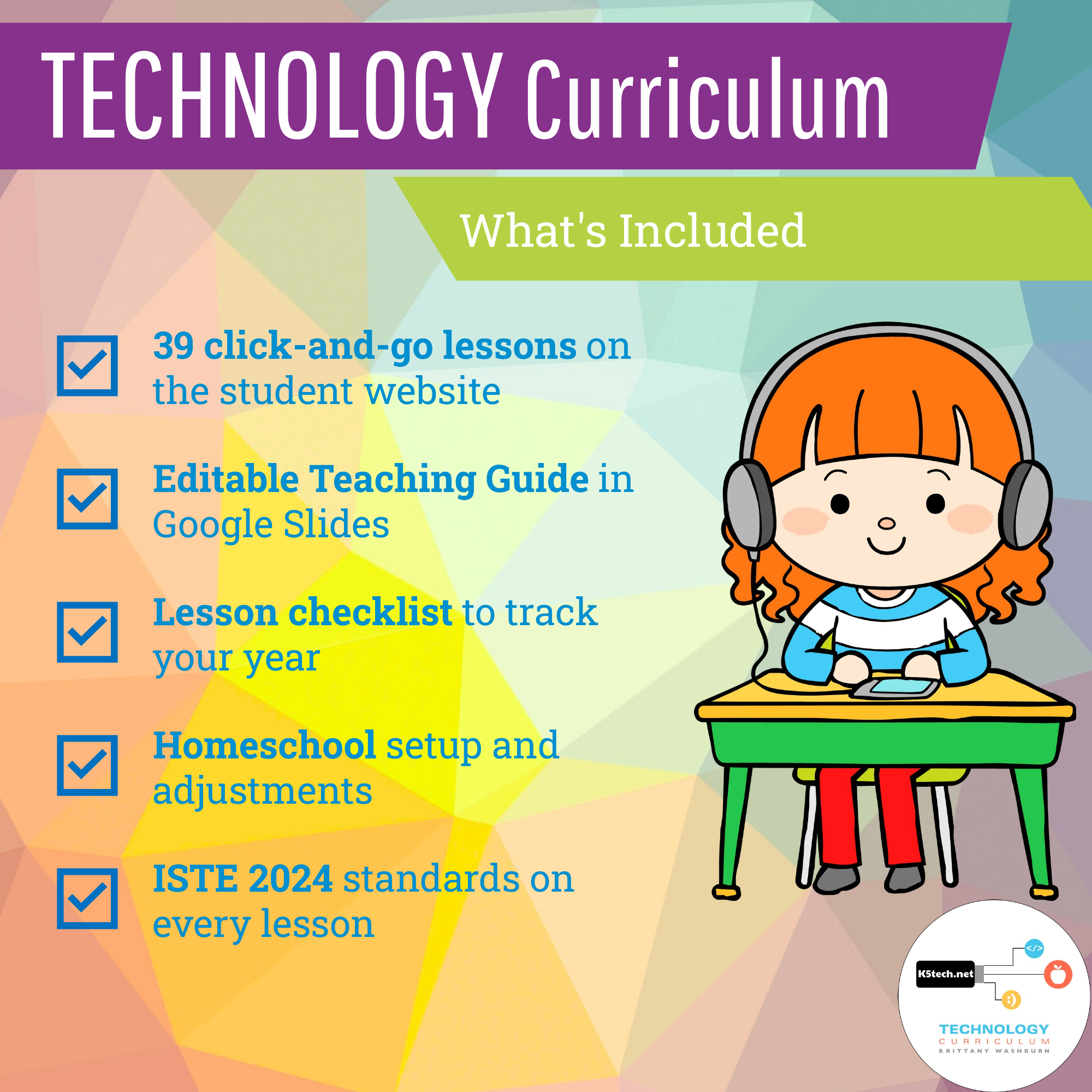
💻 What’s Included:
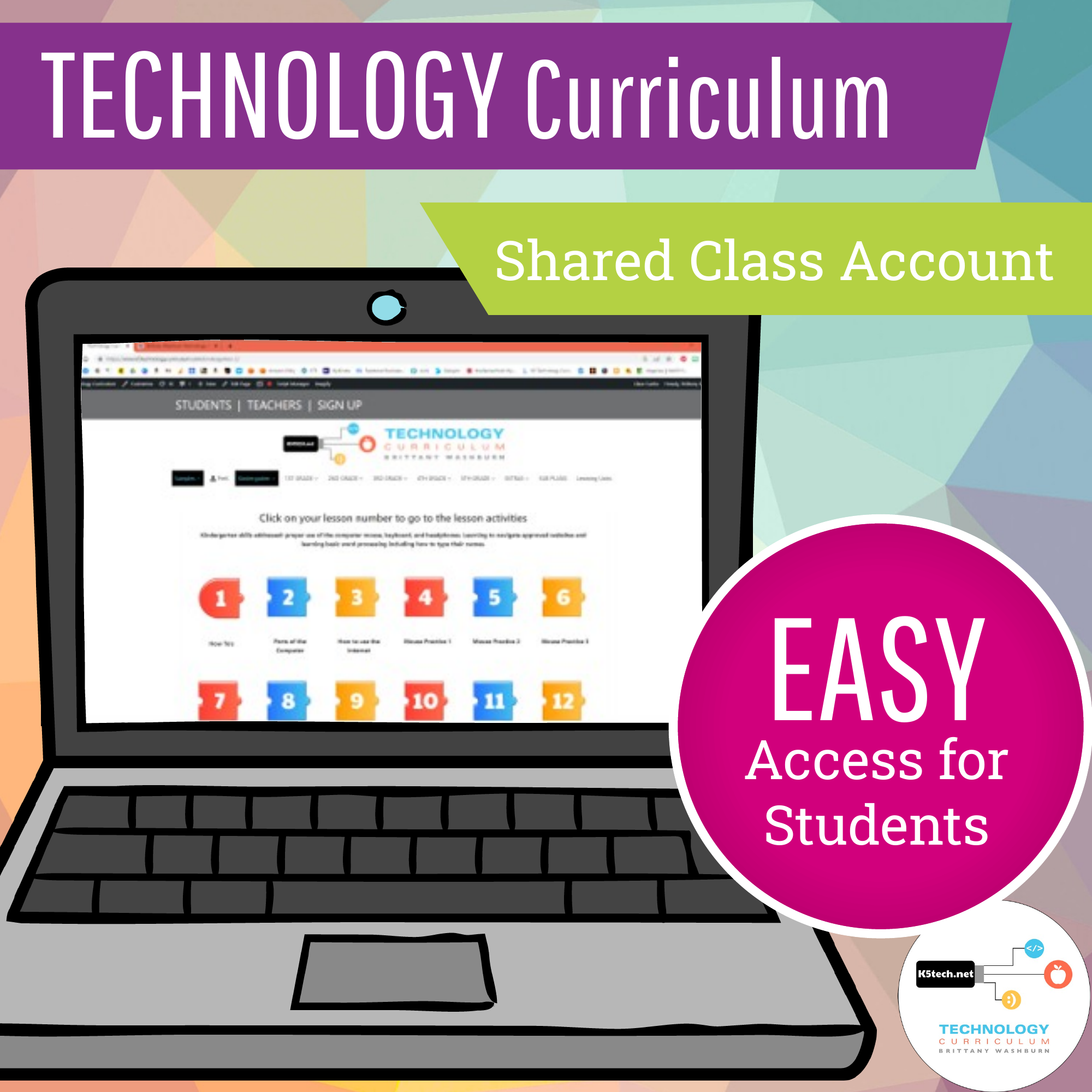
- ✅ A full school year of weekly tech classes: about 39 class sessions of click-and-go lessons and activities on the student website, with a class login
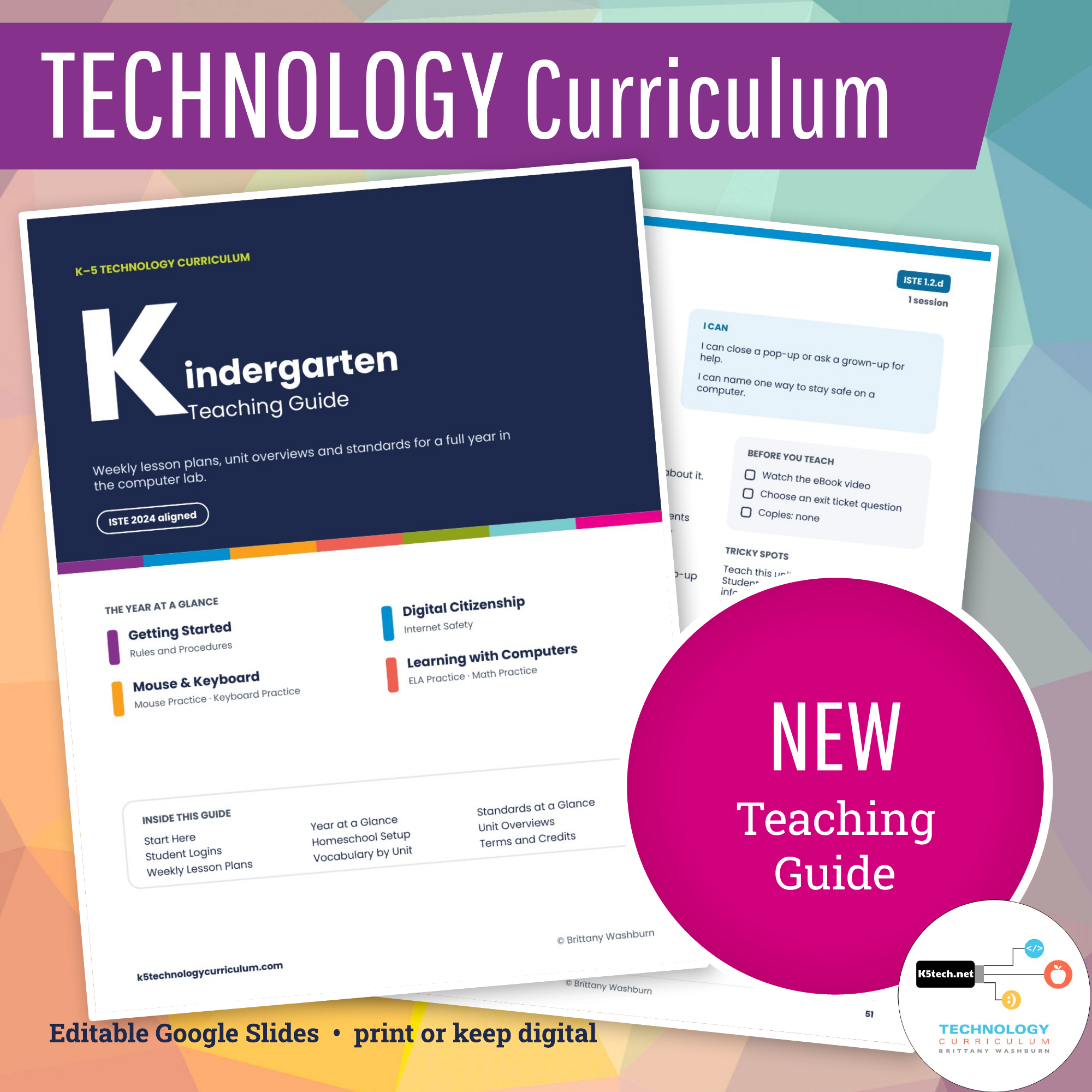
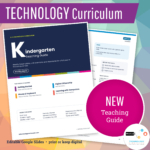
- ✅ An editable Teaching Guide in Google Slides (download it as PowerPoint or PDF)
- ✅ Unit overviews with key vocabulary
- ✅ ISTE 2024 standards on every lesson, plus CSTA, Texas TEKS and Common Core in the lesson checklist
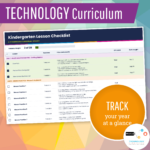
- ✅ A lesson checklist to track your year, with spaces for dates taught and notes
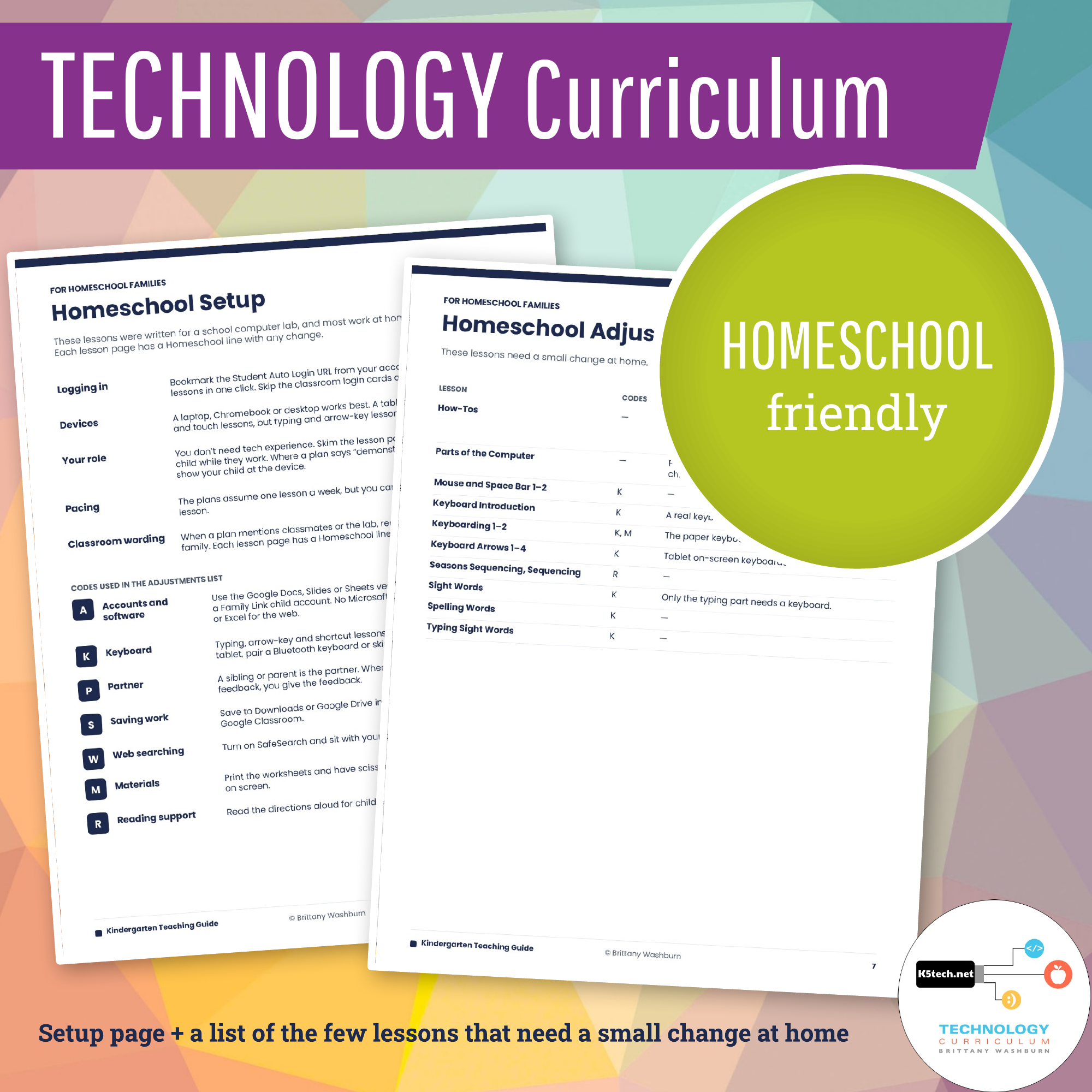
- ✅ Homeschool Setup and Homeschool Adjustments pages
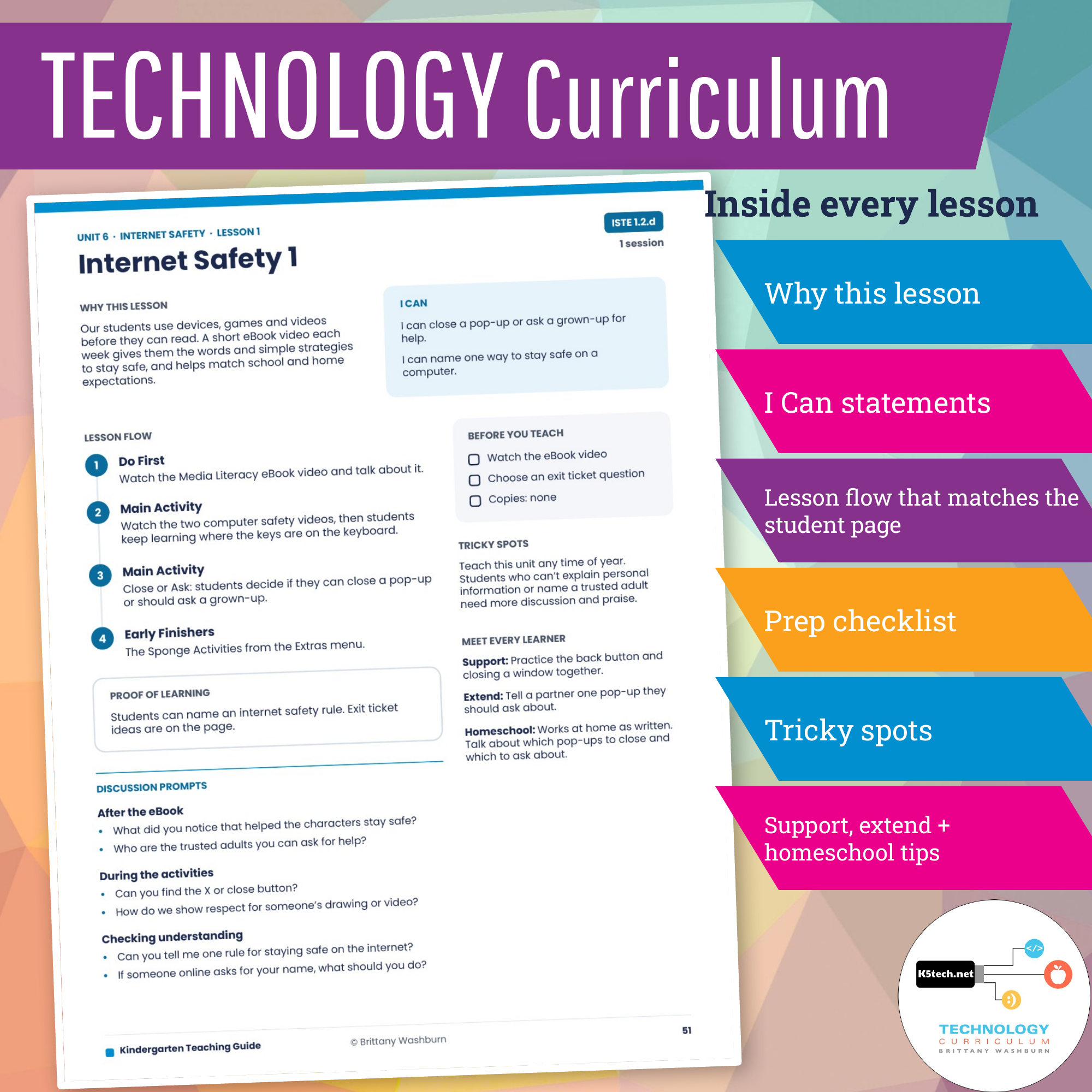
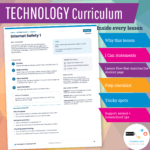
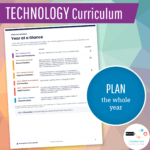
A Teaching Guide for the whole year. Every grade comes with an editable Teaching Guide in Google Slides. It opens with a Year at a Glance, Standards at a Glance and student login steps, then gives you a plan for every lesson: why it matters, the I Can statements, the lesson flow (matching what students see on screen), what to prep, tricky spots and ideas for support and extension. Make your own copy to edit it, print the pages you need, or keep it digital.
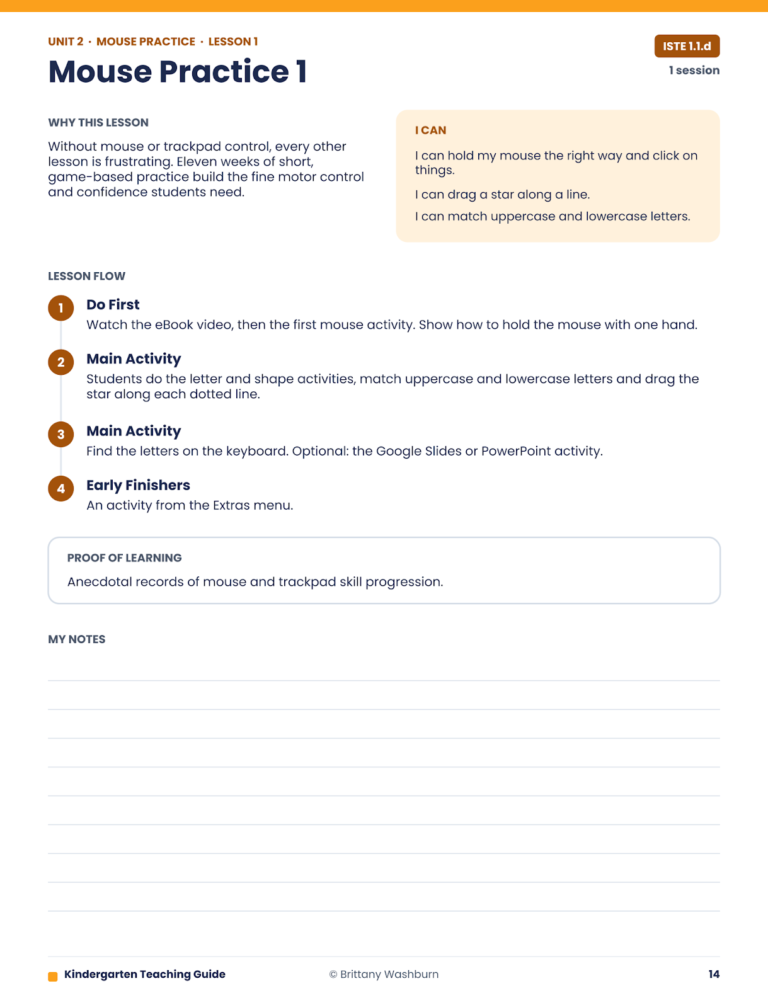
A real page from the Kindergarten Teaching Guide: Mouse Practice 1
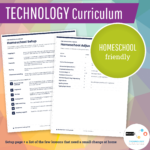
Homeschooling? The lessons work at home as written. Each Teaching Guide includes a Homeschool Setup page and a list of the few lessons that need a small change at home, like polling family members instead of classmates.
How It Works
When you subscribe, you gain access to a comprehensive digital learning platform designed to enhance your classroom experience. Here’s how you and your students can make the most of it:
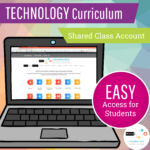
- Class Account Access: With your subscription, you receive a single class account that all students will use to access the curriculum’s lesson pages. Think of this as your digital textbook, where every student can use the class account and explore the content.
- Student Login Options: There are two easy ways for students to access the lessons:
- Auto Login URL: Share a unique Auto Login URL with your students for quick, hassle-free access to the class account. No need to remember usernames and passwords!
- Username and Password: Alternatively, students can manually log in using the class account username and password. This method is great for reinforcing digital literacy skills like typing and account management.
- Teacher Facilitation: As the teacher, you continue to guide your students through their learning journey. Direct them to the specific lesson pages that align with your teaching plan, monitor their progress, and collect their completed assignments for assessment.
By using this digital curriculum, you maintain control over the learning process while providing your students with easy access to engaging, technology-based content. Enjoy a seamless, interactive teaching experience that supports your educational goals!
What you need in order to use these lesson plans:
- Subscription includes an Auto Login URL for students. Simply share the URL with students and it logs them in automatically. Great for little ones! *Cookies must be enabled on your student devices for this to work.
- Laptops are ideal (PC or Chromebooks) because not all of the activities will load correctly from a tablet. I do not recommend buying this if you only have tablets.
- There are a handful of YouTube videos to supplement the lessons. If you don’t have access to YouTube you can accomplish the same objective by doing a demonstration yourself.
Frequently asked questions
What computer skills do kindergarteners learn in this curriculum?
Using a mouse or trackpad to click, drag and drop, finding letters, numbers and arrow keys on the keyboard, typing sight words, practicing math on the computer, and beginning internet safety.
How long does it last?
About 39 class sessions, so a full school year of once-a-week technology classes.
Do I need Google or Microsoft?
No. Kindergarten lessons are click-and-go activities in the web browser, so there’s no software to install. They work on Chromebooks, PCs and Macs.
Do students need their own accounts?
No. Your class shares one login, either an Auto Login URL or a class username and password, and no student data is collected.
Can I use it if I’m not a technology teacher, or if I homeschool?
Yes. It’s designed for classroom teachers with lab time and homeschool families too. The Teaching Guide walks you through every lesson, and the homeschool pages show the few lessons that need a small change at home.
What standards does it cover?
Two ISTE 2024 Standards for Students, Empowered Learner and Digital Citizen, with I Can statements on every lesson, plus Common Core, Texas TEKS and CSTA mapped in the lesson checklist where they fit.
This is a 365 day recurring subscription. The subscription will automatically renew unless you cancel it, which you can do from inside of your account.
Try a free sample lesson: Keyboard Arrows 2 and Counting and Cardinality.
Read more: what kindergarteners learn in technology class.
Looking for another grade? See 1st grade or save with the K–5 bundle.
Watch these video demos:
Reviewers earn rewards points for any honest review they leave, positive or negative.
You must be logged in to post a review.
You may also like…
-
Sale!

K-5 Technology Curriculum Bundle Yearly Subscription
Original price was: $216.00.$162.00Current price is: $162.00. / year
Related products
-
-
-
Sale!
Technology Curriculum Add on Pack K-5 Bundle
Original price was: $27.00.$21.60Current price is: $21.60.
Reviews
There are no reviews yet.