
If Planning Technology Lessons Feels Harder Than It Should Be, You’re Not Wrong.
Most K–5 teachers are expected to teach essential tech skills with limited time and resources. This curriculum was built for that reality.
Trusted by thousands of K–5 technology teachers since 2016
⭐⭐⭐⭐⭐ 101 reviews.

How It Works
When you subscribe, you gain access to a comprehensive digital learning platform designed to enhance your classroom experience. Here’s how you and your students can make the most of it:
- Class Account Access: With your subscription, you receive a single class account that all students will use to access the curriculum’s lesson pages. Think of this as your digital textbook, where every student can use the class account and explore the content.
- Student Login Options: There are two easy ways for students to access the lessons:
- Auto Login URL: Share a unique Auto Login URL with your students for quick, hassle-free access to the class account. No need to remember usernames and passwords!
- Username and Password: Alternatively, students can manually log in using the class account username and password. This method is great for reinforcing digital literacy skills like typing and account management.
- Teacher Facilitation: As the teacher, you continue to guide your students through their learning journey. Direct them to the specific lesson pages that align with your teaching plan, monitor their progress, and collect their completed assignments for assessment.
By using this digital curriculum, you maintain control over the learning process while providing your students with easy access to engaging, technology-based content. Enjoy a seamless, interactive teaching experience that supports your educational goals!
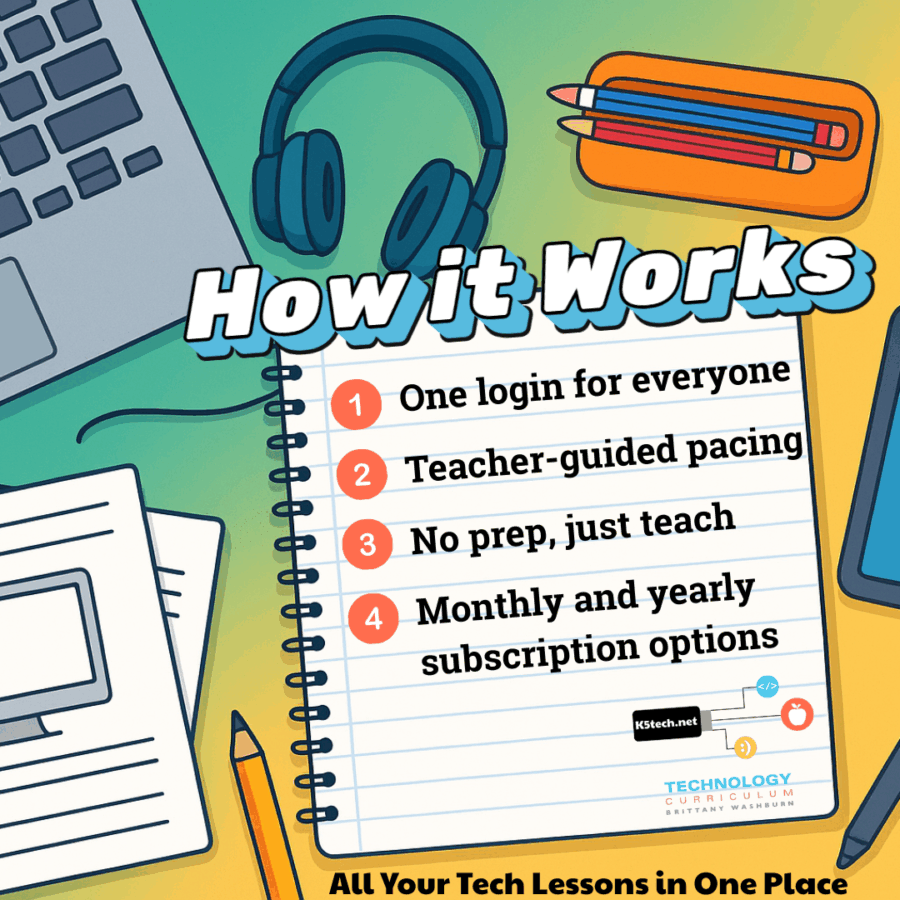
Subscribe
Choose Yearly ($135) or Monthly ($15/month)
Get Instant Access
Make your class login and download lesson plans.
Teach Tomorrow
Open any grade level page and start your first lesson.
Comprehensive Grades K-5 Technology Curriculum
A complete elementary technology curriculum designed for real classrooms
If teaching technology well feels harder than it should, you are not wrong. Building strong digital skills takes structure, sequencing, and intentional practice. Many elementary educators are expected to create that system on their own, often with limited time and resources.
The K–5 Technology Curriculum was created to solve that problem.
Designed for elementary computer lab teachers, media specialists, grade-level educators with scheduled lab time, and homeschooling families, this comprehensive elementary technology curriculum includes over 200 ready-to-teach lessons and activities that intentionally build technology skills across grades K through 5.
Less planning. More purposeful instruction.
This curriculum simplifies technology lesson planning while ensuring students develop meaningful, transferable digital skills. Lessons are thoughtfully sequenced so skills build week to week and year to year instead of feeling disconnected.
Students move from foundational computer procedures and keyboarding to digital citizenship, online research, productivity tools, and coding as part of one cohesive K–5 computer curriculum.
Built for once-a-week computer lab instruction
Many elementary technology teachers only see students for one 45-minute session per week. This curriculum is designed for that reality.
With clear routines, predictable lesson structures, and intentional skill progression, even limited instructional time can produce lasting technology literacy when the curriculum is built to support it.
This curriculum is a good fit if:
- You want students who can confidently log in, navigate websites, access programs, type efficiently, and use technology to learn
- You know students need to feel comfortable with the technology required for standardized testing and academic tasks
- You have limited instructional time and want each lesson to build toward real skill development
- You want a solution that is efficient for you and engaging for your students


Designed to support teaching, not replace it
This is a teacher-directed technology curriculum. The setup work is already done so you can focus on modeling skills, guiding students, and reinforcing learning.
It is an ideal fit for:
- Elementary technology teachers
- Media specialists and tech facilitators
- Classroom teachers with mandatory lab time
- Homeschooling families seeking structured technology instruction
What you’ll teach with this elementary technology curriculum:
- Computer basics and classroom procedures
- Mouse and trackpad control
- Keyboarding and typing skills
- Digital citizenship and internet safety
- Online research and information evaluation
- Creative technology projects that actually work in real classrooms
- Productivity software skills including Google Apps and Microsoft Office
- Coding and computer science fundamentals
A detailed scope and sequence for each grade level is available on this page so you can see exactly how skills progress across the school year.

About the Creator
My name is Brittany Washburn, and I am an educator who specializes in elementary technology instruction.
This curriculum was originally created over the course of three school years, during a time when I had very few materials for my technology specials. Like many teachers, I spent my nights and weekends searching Pinterest and Google for ideas because I knew my students deserved meaningful, engaging technology lessons even when resources were limited.
Over time, that approach became exhausting. I knew there had to be a more sustainable way to teach technology well without constantly starting from scratch.
That shift happened when I began using a class website and screencasting my instructions. With clear modeling and consistent lesson structures, students were able to follow directions more independently, routines became smoother, and class time was used more purposefully. I finally felt like technology instruction was working the way it should.
Once I fully built out the lessons and aligned them to the ISTE Standards for Students, my planning was essentially complete. I was able to keep up with the many other responsibilities that come with teaching technology and actually enjoy the work again. Most importantly, I had the energy to focus on instruction instead of constant preparation.
Over the years, I tested and refined these lessons with real students in real classrooms. Today, I continue to update and improve the curriculum to ensure it remains age-appropriate, practical, and aligned with current technology standards.
This curriculum exists to make teaching technology clearer, more intentional, and far less overwhelming for educators.
Watch this video for full walkthrough
What you need in order to use these lesson plans:
- Subscription includes an Auto Login URL for students. Simply share the URL with students and it logs them in automatically. Great for little ones! *Cookies must be enabled on your student devices for this to work.
- Laptops or desktops are ideal (PC or Chromebooks).
- There are YouTube and Vimeo videos to supplement the lessons. If you don’t have access to Vimeo or YouTube you can accomplish the same objective by doing a demonstration yourself.
- Student instructional videos are embedded into the site via my Vimeo account. You may need to ask your school or district to whitelist Vimeo.
- Access to either Google Apps or Microsoft Software programs for students.
- Up to date web browser. All lessons have been tested in Chrome, Firefox, Edge, and Safari (desktop versions).
Are the tech lessons designed for students to complete independently?
The K–5 Technology Curriculum is intentionally teacher-directed, not student-paced.
Here’s why:
- For younger grades especially (K–2), students are still developing reading skills, fine motor skills, and the ability to follow multi-step digital directions. These lessons are meant to be facilitated by the teacher, with you guiding students through each activity.
- Lessons include teacher rationale pages and editable plans so you can introduce the concepts, demonstrate skills, and scaffold as needed.
- Students then complete the activities individually, but always with teacher oversight and support.
If you’re hoping for more independence at younger grade levels, you may want to use a screen reader extension to help students who aren’t strong readers yet. This allows the lesson text to be read aloud, giving them more autonomy.
Quick takeaway: The curriculum is designed to keep you, the teacher, in the driver’s seat—while still giving students engaging, hands-on opportunities to practice essential technology skills.
This curriculum replaces:
- One-off digital citizenship lessons
- Random tech activities that don’t build skills
- Piecing together multiple resources
- Guessing what to teach at each grade level
Each lesson or project includes:
- Lesson plan and rationale pages for the teacher (like the teacher manual but better). These lessons are designed to be teacher-facilitated, not student self-directed. Younger students especially will need your guidance as they build their technology skills.
- Printable and editable lesson planning pages and rationale pages where I explain the how and why for each lesson or unit.
The lesson plan pages come in a PowerPoint file that will easily open in Google Slides if you upload it to your drive. It is fully editable in case you need to make modifications, or you can just print the whole file and hand write your notes.
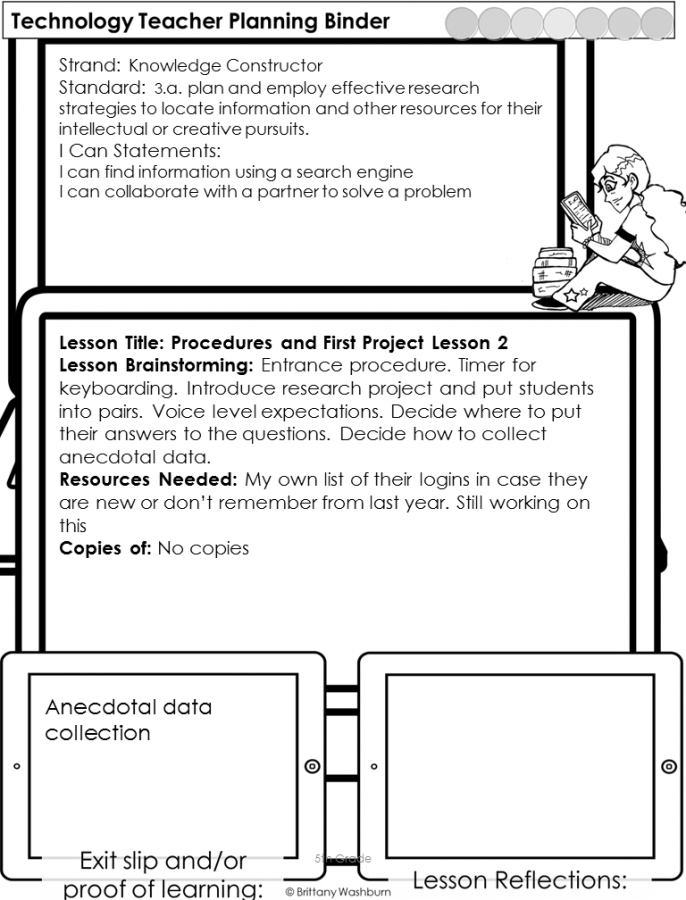
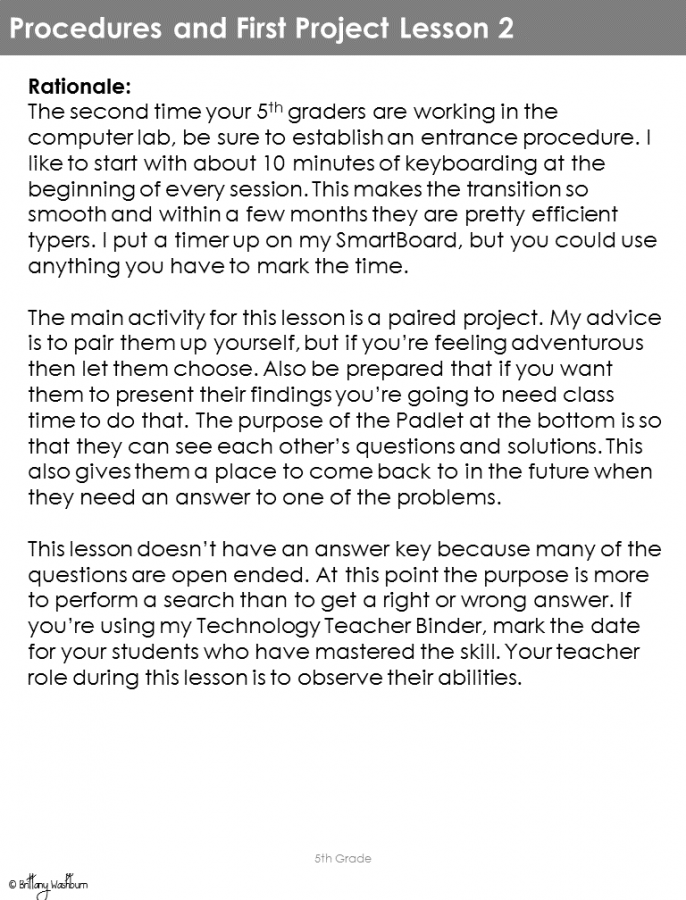
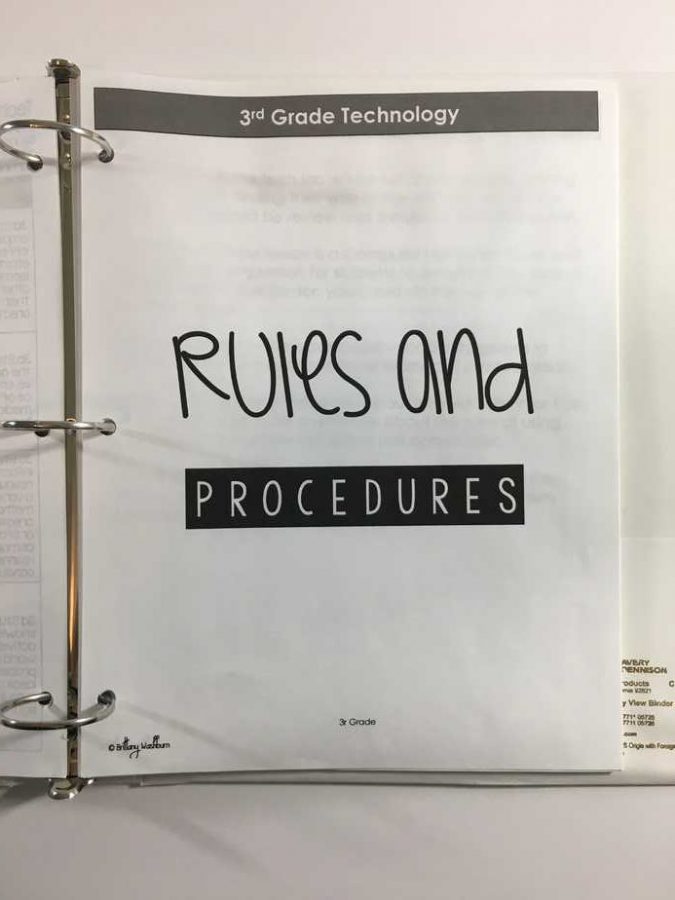
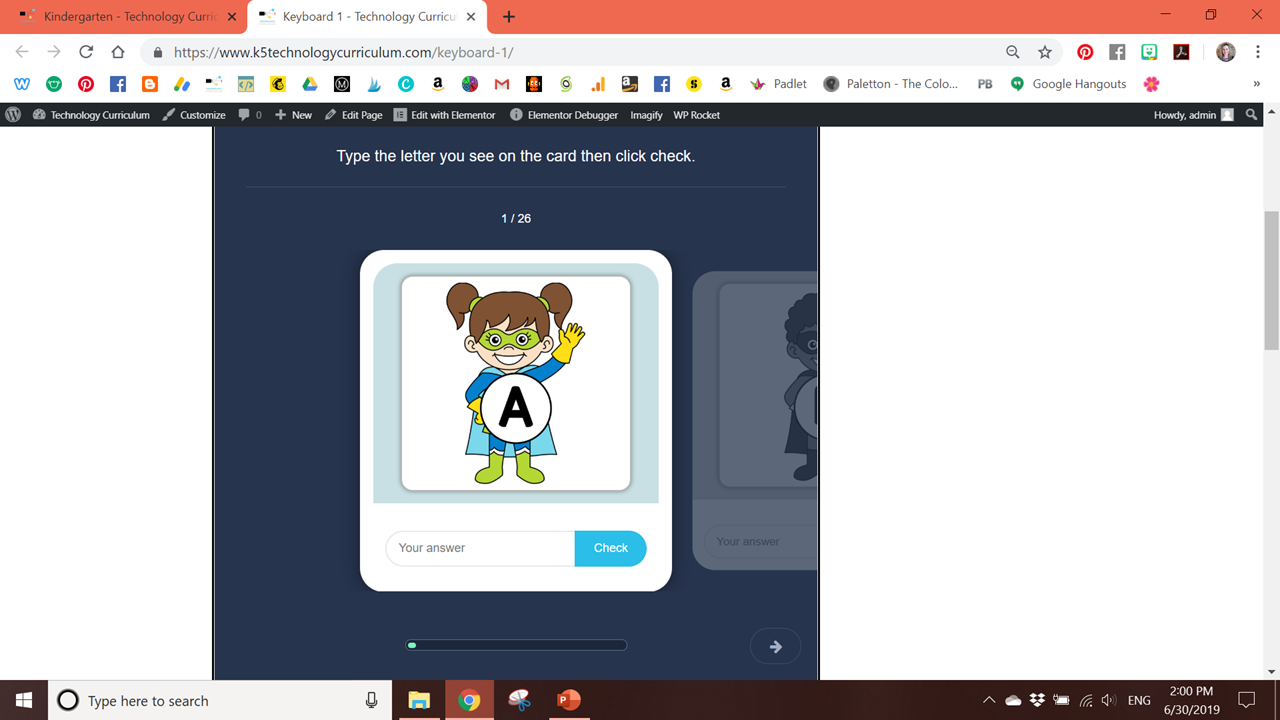
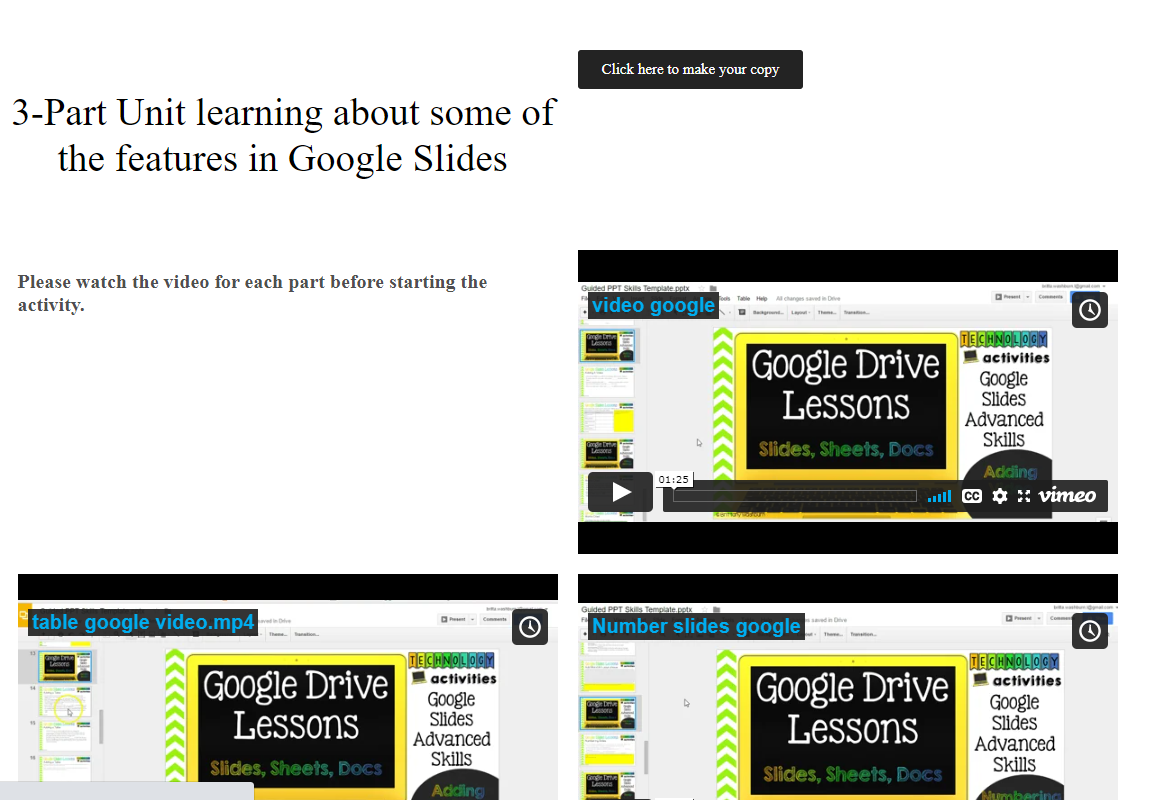
Each lesson or project includes a web page with linked prompts, directions, and activities (like a workbook but digital).
There are several sample lessons you can look at to see how it all works:
Kindergarten
First Grade
Second Grade
Third Grade
Fourth Grade
Fifth Grade
As you can see, there is a combination of digital activities built right onto the pages and external links.
Easy access for even your youngest students! Either use the Auto Login URL or have students practice logging in by typing the class username and password.
Everything is set up for you!
Directions, screencasts, early finisher activities, everything your students need to be successful with just an intro or demo from you!
CURRICULUM TOPICS & SUBJECTS INCLUDED
- Mouse/ Trackpad Skills
- Parts of a Computer
- Navigating a Device for Learning
- Keyboard Arrows
- Keyboard Letters and Numbers
- Math and ELA Digital Activities to practice the mouse and keyboard
- Internet Safety and Digital Citizenship
- Mouse/ Trackpad Skills
- Parts of a Computer
- Navigating a device
- Keyboard familiarity and practice
- Internet Safety, Media Literacy, and Digital Citizenship
- Computer Skills
- Word/Docs
- Keyboarding to proficiency
- Computer Vocabulary
- Internet Safety, Media Literacy, and Digital Citizenship
- Hour of Code
- Creation Tools for creativity with technology
- PowerPoint / Google Slides
- Word / Docs
- Internet Safety, Media Literacy, and Digital Citizenship
- Word / Docs
- PowerPoint / Google Slides
- Excel / Google Sheets
- Internet Search and basics of online research skills
- Typing skills and proficiency
- Online Research skills
- PowerPoint / Google Slides
- Coding
- Computer Vocabulary
- Word processing and Typing
- Internet Safety
- Google Sheets/ Excel
- Creation tools
- Research skills and practice
- Internet Safety Research Project
- Word processing and Typing
- Coding
- PowerPoint / Google Slides
- Spreadsheet Software
BONUS FILES INCLUDED IN THE YEARLY SUBSCRIPTION DOWNLOADS
- 4 Sets of Backup plans (great for when technology/WiFi isn’t cooperating)
- Computer Lab Management strategies
- Paper username and password practice printable
- Certificate of completion
Research-Based Technology Curriculum for Elementary Students
The K–5 Technology Curriculum is built on a research-informed instructional framework designed to help students develop real digital literacy skills, not just complete technology activities.
The curriculum draws on research in digital literacy education, cognitive science, and evidence-based instructional design to create a structured progression of technology skills across the elementary grades. Lessons combine teacher-guided instruction, hands-on practice, and authentic digital tasks so students build confidence using technology tools in meaningful ways.
Students develop practical technology skills including file management, digital research, responsible technology use, productivity tools, and computational thinking. Each lesson is part of a larger scope and sequence that gradually builds independence and problem-solving abilities with technology.
To see how the curriculum’s instructional design is grounded in research and national technology standards, visit the Research & Evidence page.
✔ Research-Informed Instruction
✔ ISTE Standards Aligned
✔ Structured K–5 Skill Progression
✔ Designed for Elementary Computer Labs
Each grade level has specific units and skills taught. See the scope and sequence here:
Scope and Sequence for Each Grade Level
Click on the grade level tabs down the side to see the other grades.
SPECIAL OFFER: Click here and use the code TRYK5TECH1 at checkout to get the first 30 days for just $1!
You can click the Member Login button to see the Homepage. From there you can look at all of the lesson titles from the menu and see the sample pages.
Kindergarten Lessons
These are the lesson titles you will find in this resource:
Rules and Procedures
- How to’s
- Parts of the Computer
- How to use the Internet
Mouse Practice
- Mouse Practice 1-11 (repeat to mastery. Includes academic content with learning games)
- Can be used for mouse or trackpad
- Hover, click, click and drag (drag and drop), double click, right click, scroll
- Mouse and Spacebar 1-2
Keyboard Practice
- Keyboard Introduction
- Keyboard Arrows 1-4
- Keyboarding 1-2
- Sequencing, 2 lessons
ELA Practice (reviews mouse/trackpad, keyboard, and website navigation)
- Spelling Words
- Sight Words
- Typing Sight Words
Math Practice (reviews mouse/trackpad, keyboard, and website navigation)
- Math Practice 1-6
- Counting and cardinality
- Counting to tell number of objects
- Compare numbers
- Operations and algebraic thinking
- Base ten
- Measurement
Internet Safety
- Internet Safety 1-5
- Internet safety overview
- Downloading
- Screen time
- Online friends
- Unit overview
Read the blog post with FAQs for the Kindergarten technology curriculum.
Watch these video demos:
1st Grade Lessons
These are the lesson titles you will find in this resource:
Rules and Procedures
- How to’s
- Computer Parts 3 week unit (comes with printable worksheets)
- How to use the Internet
- Save to Favorites
Mouse and Keyboard Practice
- Mouse Practice (repeat as many times as needed)
- Keyboard Arrows (repeat until mastered)
- Memory Match
- Paint and Make
- Alphabet Order
Internet Safety
- Internet Safety 1-4
- Digital activities to go with Common Sense Media Curriculum
- Private and personal information
- Netsmartz Into the Cloud videos
Computers and Academics (mouse and keyboard practice with academic content)
- Math with Computers 1 and 2
- Addition Game
- Reading with Computers 1 and 2
- Make a Secret Message
- Make a Story
Word Processing
- MS Word OR Google Docs
- Typing in Word
- Changing the Fonts
- Adding Pictures
- Typing Practice
- Writing with Computers
Presentation Software
- PowerPoint 1-3 OR Google Slides 1-3
- Adding pictures
- Fonts and text
- Slide layouts
Research
- Research Skills Lessons
- Research steps
- Keywords
- Taking notes
- Giving credit
- Group Research Project
Coding Unit
- First Grade Coding
- Conditionals Unit
Read the blog post with FAQs for the 1st grade technology curriculum.
Watch these video demos:
2nd Grade Lessons
These are the lesson titles you will find in this resource:
Rules and Procedures
- How to’s
- Windows
- Computer Skills
- Technology Vocabulary 1-3
Typing
- Typing Practice 1
- Typing Stamina Building 2-6
- Typing Lesson 7
Word Processing
- Microsoft Word OR Google Docs
- Layering text and graphics
- Spell Check
- Making lists
Presentation Software
- PowerPoint OR Google Slides
- Add slides and change layout
- Pictures and backgrounds
- Type text in a box
Hour of Code
- Hour of Code
Internet Safety
- Internet safety 1-3
- The Internet
Make A… Projects
- Pixel Art
- Make a Leaf Creature
- Build a City
- Friendly Letter
- The Internet
- Copy and Paste Practice
- Make a Book Cover
BONUS Activities if you have time:
- Color coded typing digital flash cards
- Tech vocab word search
- Digital breakouts
- Drag and drop practice
Read the blog post with FAQs for the 2nd grade technology curriculum.
Watch these video demos:
3rd Grade Lessons
These are the lesson titles you will find in this resource:
Rules and Procedures
- First Day in Technology rules and vocabulary review
Word Processing
- Word Processing 1-5
- Word Processing Test
- Word Processing Typing
- Alternate word processing modules – 5 weeks
- Fonts
- Text
- Lines
- Spacing
- Lists
Internet Safety
- Internet Safety 1-6
- Online safety rules
- Online communication
- Passwords
- Cyberbullying
- Assessment
Typing
- Typing Olympics (4 Weeks)
- Color coded typing 2 weeks
Presentation Software
- PowerPoint OR Google Slides
- Changing the font
- Inserting pictures
- Fun with word art
Spreadsheet Software
- Excel Lessons OR Google Sheets
- Fill in a Chart
- Make a Bar Graph
- Make your own Graph
Online Search
- Learn about Search Engines
- Internet Search 1 and 2
Coding
- Code an Avatar
BONUS if you have time:
- Google Slides (or PowerPoint) Digital Stop Motion Animation Project
- Digital breakouts
- Technology vocabulary activities
- Typing sight words
Read the blog post with FAQs for the 3rd grade technology curriculum.
Watch these video demos:
4th Grade Lessons
These are the lesson titles you will find in this resource:
Rules and Procedures
- Lesson 1: Google log and Create a Rules poster
Technology Vocabulary
- Lesson 2: Google log and Vocabulary Review
- Geek Speak Intro: PowerPoint or Google Slides vocabulary template
- Technology Vocabulary Typing
Internet Safety
- Internet Safety Module 5 Weeks
- Security
- Privacy
- Search
- Multitasking (screen time)
- Cyberbullying
- Copyright
Online Research
- How to Read a Webpage
- All About Online Search
- Search Engine Strategies
- Google Search Tips
- Judging Online Information
- Evaluate a Web Page
- Website Evaluation Activity
- Putting Information Together
- Avoiding Plagiarism
- .Copyright and Fair Use
Presentation Software
- Intro to Publisher (research project)
- Google Slides OR PowerPoint
- Working with Tables
- Numbering Slides
- Inserting Videos
Spreadsheet Software
- Google Sheets or Excel
- Color and Highlight Boxes
- Formulas
Coding
- Scratch Lessons 1-8
- Make a Web Page
Word Processing and Typing
- Word processing modules 5 Weeks
- Adding hyperlinks
- Page layout
- Columns
- Headers
- Layers
- Color coded typing digital flash cards 2 weeks
BONUS Activities if you have time:
- Digital Breakouts
- Chrome Music Lab Rhythm Experiment
- STEM Challenges (great for back up plans any time of year)
Check out the blog post about the 4th grade technology curriculum
Watch some video demos of lessons:
5th Grade Lessons
These are the lesson titles you will find in this resource:
Rules and Procedures
- First Day in Tech Lesson 1: Computer Rules poster
- Procedures and First Project (technology problem solving)
Online Search
- Lesson 3: How to Read a Webpage
- Lesson 4: Evaluate Websites Activity
- Lesson 5: Google Search Tips
Vocabulary
- Lesson 6: Geek Speak Project
- Technology Vocabulary Typing
- Vocabulary Test 1
Internet Safety
- Internet Safety Project 6 Weeks. Research and activity creation.
- Internet Safety Lessons: Online reputation and responsibilities
Coding
- Scratch Lessons 1-8
- Screen Free Week
Make a … projects
- Animation Project
- Make a Wordle
- Make a Comic
- Make a Voice Recording
- Make a Picture with Labels
- Make a Puzzle
- Make a Quiz
Presentation Software
- PowerPoint Lessons
- Google Slides Lessons
- Design
- Transitions and Animations
- Spell check and Editing
- Citing Sources
Word Processing and Typing
- Word Processing Modules 5 weeks
- Shapes
- Tables
- Editing
- Styles
- Find
- Color Coded Typing Digital Flash Cards 2 weeks
BONUS Activities if you have time:
- Spreadsheet project (Candy Store)
- 3D Printing Module
- Digital Breakouts
- Extra technology vocabulary activities
- STEM Challenges (great for back up plans any time of year)
Check out the blog post about the 5th grade technology curriculum
Watch some video demos of lessons:
Enough lessons and activities for the entire School Year
For grades K-5 (based on a 45 minute class once each week)
If you have longer classes or see your students more than once a week then I recommend getting these add-ons:

Buying Options Available in Multiple Grade Levels
Purchase a K-5 Bundle or any individual grade levels you need.
-

-
Sale!
K-5 Technology Curriculum Bundle Yearly Subscription
Original price was: $185.00.$135.00Current price is: $135.00. / year -

-
-
-
-
-


Frequently Asked Questions
How does the class account work?
When you purchase a curriculum subscription, you get one class account.
This single account is shared by you and your students—everyone logs in using the same username and password.
Think of it like a digital textbook: the website is the “book,” and the login credentials are what give your class access to it.
You, the teacher, still lead instruction and guide students to the correct lesson pages. Students do not have their own separate accounts.
How students log in
There are two ways students can log in to your class account:
Option 1: Auto Login URL
This special link works like a single-sign-on shortcut.
You can find it on your My Account page after purchase.
How to use it:
- Share the Auto Login URL securely through your LMS (Clever, Google Classroom, Seesaw, Schoology, etc.), by email, or as a desktop shortcut.
- It’s perfect for making logins quick and easy for young students.
Important:
- Do not post the link publicly (school website, social media, etc.).
- Do not share it with other teachers who don’t have a license.
- If the link shows unusually high traffic, we’ll ask you to purchase an additional license.
Option 2: Username and Password
Students can also log in manually using your class account credentials.
- The username and password are the same ones connected to your order.
- If you already had an account before purchasing, that same account becomes your class account.
- To save time, check “Remember Me” the first time you log in so your browser remembers the credentials.

If someone else purchased the subscription for you
If your school secretary or administrator placed the order and assigned you as the recipient, you’ll receive two emails:
- Your account login information (this is the class account).
- Your teacher download links for lesson plans and rationale pages.
Follow the instructions in those emails.
Summary:
✅ One shared class account for you and your students
✅ Two login options: Auto Login URL or username/password
✅ You facilitate lessons—students access materials through your class account
The curriculum is housed on this website. Students log in to this website to access the lesson pages. The lesson plans are provided in Google Slides for the teacher (and administrators) to guide you through the curriculum.
Visit it ahead of time at k5technologycurriculum.com/homepage to get an idea how it works. You can find several free pages on the Samples dropdown menu. If/when you purchase access, you will create a class username and password to access all of the grade level pages.
No student data is ever collected on this website.
- Computer Basics and procedures
- Mouse/Trackpad skills
- Keyboarding (Typing skills)
- Digital Citizenship & Internet Safety
- Online Research Skills
- Creativity with Tech Tools
- Software Programs (Both Google Apps and Microsoft Office)
- Coding (Computer Science)
The lesson plans include the correlated ISTE Standard for Students. Each lesson/unit page includes I Can Statements (objectives) that you can tie to any set of standards you use.
Both! Starting in 1st grade there are lessons to teach excel/sheets, word/docs, and PPT/slides. Your students will need access for either MS Office programs or Google accounts.
Some teacher will choose to use Google Classroom as a way to collect student assignments in order to grade them, but there isn’t a way to automatically assign one of my lessons in GC.
While it is possible, I don’t recommend it. The whole first quarter of lessons for Kindergarten are on mouse skills and navigating a computer. Completing these lessons on an iPad wouldn’t accomplish the same set of standards.
While the curriculum was originally designed for computer lab teachers, there are many classroom teachers, media specialists, and homeschooling families now using it with great success.
- Classroom teachers: Purchase just the grade level(s) you need and plan to give students 30-45 minutes per week to complete one lesson per week.
- Media specialists: If you work with grades K-5 you can make use of the bundle and have all of your tech skills lessons planned for the school year.
- Homeschooling families: Most homeschooling families choose the K-5 monthly subscription option if they have multiple students at different ability levels. This enables you to have full control over which lesson(s) each child completes. You can also purchase just the grade level(s) you need and have your child work through at their own pace.
In compliance with COPPA, this site does not collect any student data. Each lesson plan includes ideas for assessment, which you can implement if you give grades. I recommend keeping anecdotal records of student progress through the lessons.
The teacher has full control over which lesson students should access and collecting finished projects. The site doesn’t keep track of anything. This enables us to use it with students under the age of 13.
This means you’ll need a way for your students to share their finished files with you. A Learning Management System like Google Classroom makes it really easy to collect files from students.
You can also keep your own anecdotal records of student progress. Click here to read a blog post about grading in the computer lab.
Individual grade levels can be purchased and if you decide you need more, it is easy to add additional grade levels at any time. The only way to subscribe month by month is to purchase the K-5 bundle. The individual grade levels are all 365 day subscriptions.
Let’s make sure this will be good fit for your students. Click here and use the code TRYK5TECH1 at checkout to get the first 30 days for just $1! After that it is $15 per month or you can switch to the yearly subscription to get 3 months free.
One license per school building. This curriculum was made with a technology teacher in mind, but some schools have their classroom teachers implement the lessons. The whole school can share the class account.
If you’re a tech teacher at multiple schools and have fewer than 30 total classes, you may use the license at more than one school building.
If you have questions about licensing, please email me before purchasing. If we find that your IP address is using an unusually high amount of server resources we may ask you to purchase an additional license.
Yes! You have complete control over your subscription from your account. If you’re not sure if this will be a good fit for you then I recommend subscribing to the monthly billing option. You can cancel it before the next renewal if needed.
I have a feeling you’ll want to stay subscribed the whole time you teach technology. The subscriptions renew automatically so you never have to worry about losing access (unless something happens like your card is declined during the renewal attempt).
I’m continually adding new content and updating outdated content. There is a bug report form if you ever find and error (like a broken link) and I’ll fix it ASAP. As new content is added, you’ll get access to it immediately on the website.
I prioritize updating the website before updating the teacher lesson plan files. Once a year you’ll want to check for updates to the teacher files by making a fresh copy of the Google Slides / PowerPoint lesson plans.
Where do I go if I have additional questions?
Email me directly at info@brittanywashburn.com if there is anything you need me to clarify.